Guide · General
How to Stream to Multiple Platforms in 2026: Setup Guide
Learn how to stream to multiple platforms with one encoder or a cloud relay, plus platform rules, bitrate limits and a private test before going live.
By the DBotMaker research desk · Updated November 9, 2026 · 10 min read
Adding platforms can reduce reach when the added destination rejects the encoder profile or the broadcast breaks its rules. That's the central risk in how to stream to multiple platforms, and it's why sustained upload capacity and platform eligibility decide the setup, not the longest list of supported sites. A 2024 analysis citing Stream Hatchet reported global live-stream viewing up 10% year over year, with Twitch at 60.3% of the measured market and YouTube Gaming at 23.4%. Audiences are large, but they don't fully overlap, so distribution only helps when every destination stays live and compliant.
Table of Contents
- Decide Between a Cloud Relay and Direct Fan-Out
- Check Each Platform's Rules Before You Connect
- Set One Encoder Profile Every Platform Accepts
- Connect Each Destination With Its Own Key
- Run a Private Test Before Going Live
- Fixing Problems While a Multistream Runs
- Confirm Your Setup Before the Next Broadcast
Decide Between a Cloud Relay and Direct Fan-Out
For one computer sending to two or more platforms on an ordinary home connection, a cloud relay is the clear pick. Direct fan-out suits a strong wired connection, a stable encoder, and one shared profile that every destination accepts. The difference is arithmetic, not preference.
Each direct destination opens its own upload at the full bitrate. A 4 Mbps feed sent directly to three platforms needs about 12 Mbps of outbound upload, while a relay needs only the 4 Mbps master because replication happens server-side. Encoding load follows the same pattern when separate renditions are required.
| Setup | Outbound upload (4 Mbps feed) | Local encoding load | Best fit |
|---|---|---|---|
| Cloud relay, 1 platform | 4 Mbps | Low | Single destination with a quick setup |
| Cloud relay, 3 platforms | 4 Mbps | Low | Mixed horizontal and vertical destinations |
| Direct fan-out, 1 platform | 4 Mbps | Medium | Strong connection and one destination |
| Direct fan-out, 3 platforms | About 12 Mbps | High | Wired connection and one shared profile |
What the relay costs and requires
Restream states that the broadcaster sends one stream and the service delivers it to every connected channel, so upload capacity is needed for one stream rather than one upload per destination. For its Studio product, Restream recommends at least 10 Mbps upload and 25 Mbps or more for Full HD. According to restream.io, prices checked October 2026, the Basic plan is listed at $0 with two channels and the Standard plan at $19 per month with five channels.
The trade-off is dependence on an intermediary. Plan channel limits, added latency, and recovery behavior matter, especially whether the relay keeps other destinations live when one fails. Direct fan-out avoids that dependency but multiplies bandwidth and failure points with every destination added.
Practical rule: Measure sustained upload during a busy period, not the advertised plan speed, and keep 20 to 30 percent headroom above the calculated total.
Readers comparing encoder and relay combinations can use the best streaming software ranking to check platform support and plan limits before committing. If measured upload can't hold the direct total with headroom, the relay isn't optional. It's the setup that fits the connection.
Check Each Platform's Rules Before You Connect
A broadcast can connect cleanly and still get removed. That's the flaw in treating multistreaming as only an RTMP setup task. Eligibility, overlays, and viewer direction rules differ by platform, and one shared layout can violate a rule on a single destination.
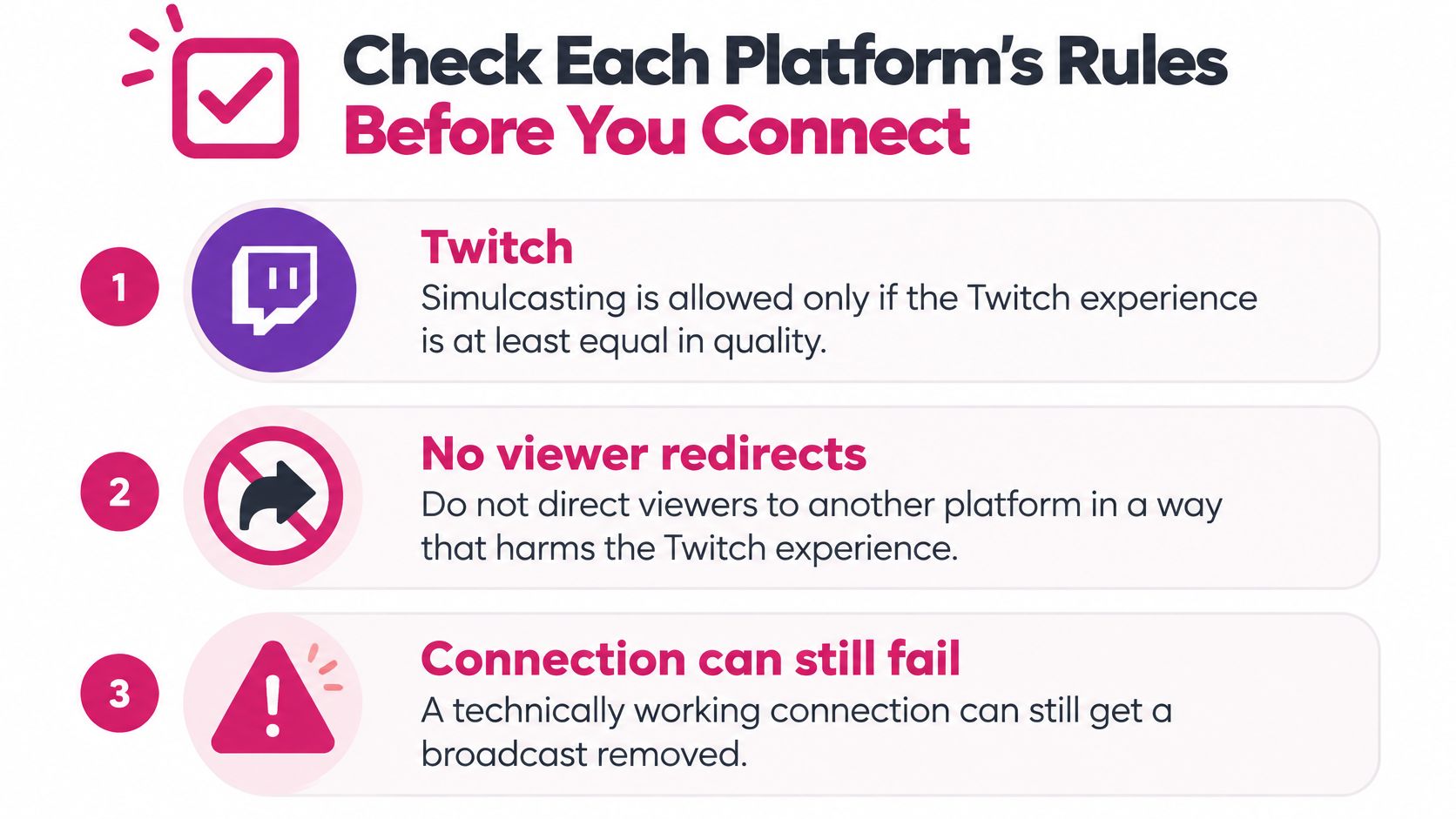
The Twitch simulcasting guidelines permit simulcasting only if the Twitch experience is at least equal in quality, prohibit directing viewers to concurrent streams elsewhere, and prohibit displaying combined activity from other platforms on the Twitch stream. TikTok LIVE access can depend on account age, regional availability, follower thresholds, and account standing, so the current TikTok help page should be checked before each event.
Adding a destination can affect reach. If Twitch quality drops because the shared feed is adjusted for a stricter or weaker platform, the simulcast rule is the problem, not the encoder. If one overlay includes a combined chat or a "watch on another platform" prompt on Twitch, the safer choice is a platform-specific scene, not a smaller font. And if a destination is only eligible sometimes, arrange the lineup so dropping it does not change the core show.
| Check | Requirement to confirm | Action if it fails |
|---|---|---|
| Twitch simulcasting | Twitch experience must be at least equal in quality | Drop the simulcast or match quality |
| Twitch viewer direction | No directing viewers to concurrent streams elsewhere | Remove calls to action that point to other streams |
| Twitch overlays | No combined activity from other platforms shown on the Twitch stream | Use a platform-specific scene |
| TikTok LIVE access | Account age, region, follower threshold and account standing | Wait for access or skip TikTok for this event |
| Exclusivity contracts | No clause that bans simulcasting | Get written permission or skip that destination |
| Rejection or termination | Platform response if it rejects or ends the broadcast | Prepare a fallback scene and the appeal route |
The safe design is a lowest-common-denominator broadcast for the shared feed, with separate platform-specific scenes for overlays and calls to action. Rules vary by country and account, so each platform's current help page should be checked before every event. A destination that fails eligibility shouldn't be forced into the lineup.
Set One Encoder Profile Every Platform Accepts
Start with the baseline most destinations accept, then check it against the strictest limit. That baseline is H.264 video, AAC-LC stereo audio at 128 kbps, constant bitrate, and 1920 by 1080 at 16:9. A 1080p30 master at about 4 to 6 Mbps fits most shared setups, while 720p30 at about 2.5 to 4 Mbps suits a constrained connection.
| Setting | Shared profile | Platform limit | If platforms disagree |
|---|---|---|---|
| Video codec | H.264 | Facebook Live requires H.264 | Keep H.264 for every destination |
| 1080p30 video bitrate | 4 to 6 Mbps | YouTube 14 Mbps recommended; Facebook 3,000 to 6,000 Kbps | Stay within the Facebook range |
| 1080p60 video bitrate | 4,500 to 9,000 Kbps | YouTube 17 Mbps recommended; Facebook 4,500 to 9,000 Kbps, maximum 15 Mbps | Cap at 9 Mbps or send a separate output |
| Audio | AAC-LC stereo, 128 kbps | Facebook Live requires AAC | Keep one audio profile for all |
| Resolution and aspect | 1920 by 1080, 16:9 | Facebook expects 16:9 | Build a vertical rendition for mobile-first destinations |
Where the limits conflict
YouTube's encoder-settings documentation, published in 2020 and retrieved from the current support page, lists a recommended H.264 bitrate of 17 Mbps for 1080p60 and 14 Mbps for 1080p30, with 12 Mbps and 10 Mbps for AV1 or H.265 at those frame rates. YouTube also specifies constant-bitrate encoding and supports frame rates up to 60 fps.
Meta Business Help guidance, retrieved in 2026, sets Facebook Live at a maximum of 1920 by 1080 and 60 fps, with a maximum recommended bitrate of 15 Mbps, 4,500 to 9,000 Kbps for 1080p60, and 3,000 to 6,000 Kbps for 1080p30. It requires H.264 and AAC, expects 16:9, and advises subtracting about 20% from measured upload when setting bitrate.
The conflict is direct. A single output at YouTube's 17 Mbps 1080p60 recommendation exceeds Facebook's 15 Mbps maximum, so the shared profile must sit inside the stricter range or a second output must be built. Encoders such as the one covered in the OBS Studio review can hold that shared profile, but vertical-first destinations still need a separate rendition or cloud transcoding, not a stretched 16:9 feed.
Connect Each Destination With Its Own Key
Connection failures usually come from keys and per-platform settings, not from the video itself. Each destination needs its own route, its own credentials, and its own verification before the rehearsal.
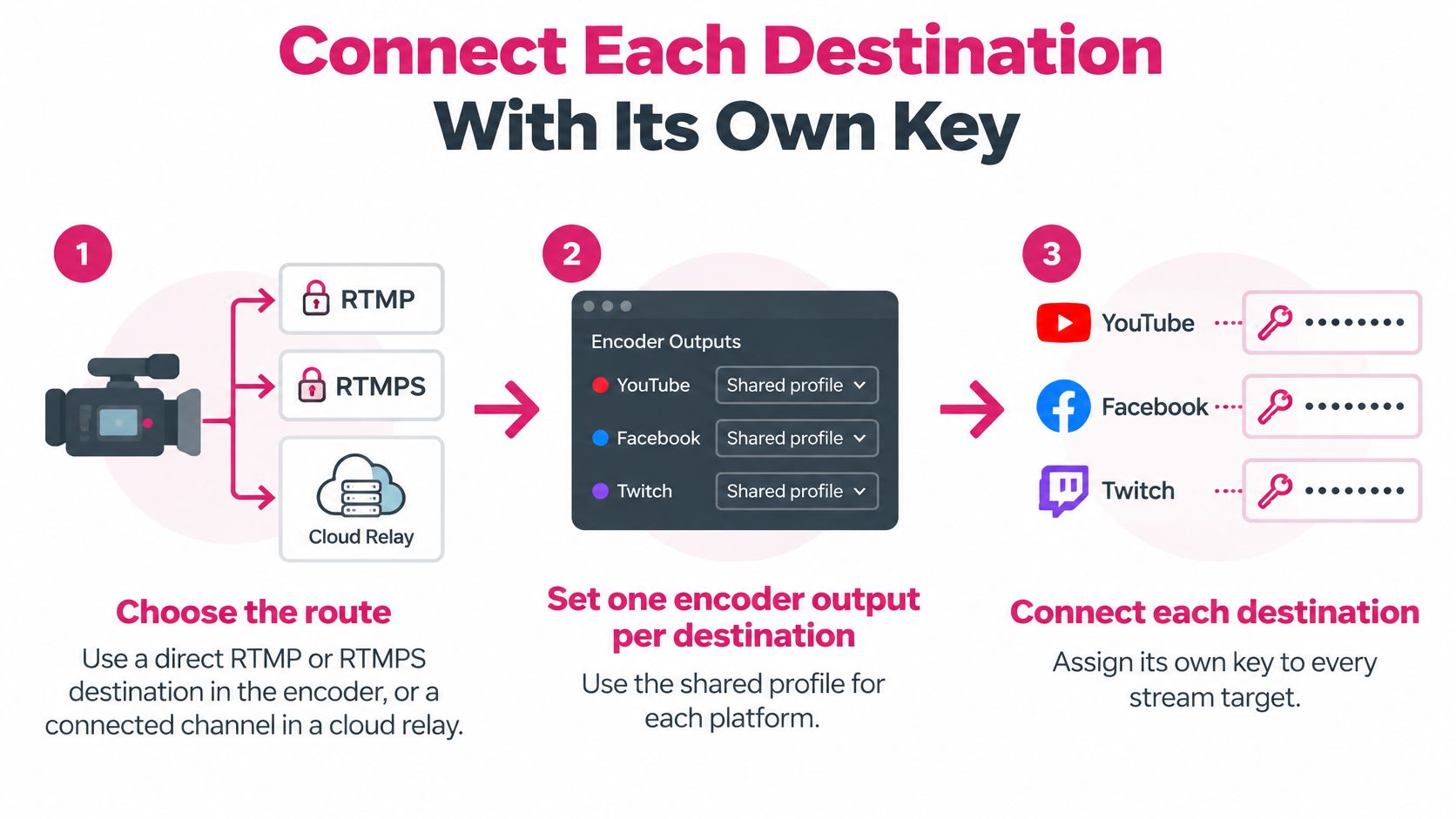
- Choose the route: Use a direct RTMP or RTMPS destination in the encoder, or a connected channel in a cloud relay, for each platform.
- Set one output per destination: Apply the shared profile, with constant bitrate and the keyframe interval each platform requires.
- Copy credentials separately: Take the server URL and stream key from each platform's live dashboard. Keys shouldn't be reused across platforms.
- Check expiration and privacy: Confirm each key's expiration date and each destination's privacy setting before testing.
- Configure management per platform: Set titles, thumbnails, chat moderation, and alerts separately, because identical video doesn't mean identical management.
The Mux guide to streaming live to third-party platforms states that each stream key should be treated like a password because it identifies the broadcast and can authorize publishing, and that a 4 Mbps stream sent to three destinations requires approximately 12 Mbps with direct fan-out. The same guide warns that incorrect or expired keys can leave only one platform offline while the source broadcast appears healthy.
One successful connection doesn't prove the others work. Each destination must show a healthy ingest status on its own dashboard.
Services covered in the Restream review reduce the number of local outputs, but they don't remove per-channel checks. The most common slip remains an expired or mistyped key. That single error leaves one audience with an offline page while the encoder reports no local fault.
Run a Private Test Before Going Live
A private rehearsal turns assumptions into measured results. It should use the actual bitrate, scenes, overlays, and audio sources, because a low-bitrate placeholder test won't expose upload or encoding limits.
- Set privacy first: Put each destination in private, unlisted, or test mode so the rehearsal reaches no audience.
- Confirm shared settings: Check the lowest common codec, frame rate, audio, and keyframe requirements across the chosen platforms.
- Calculate the total: Compare aggregate bitrate with the sustained upload measured earlier. The total must fit with headroom, not just equal the available speed.
- Run the rehearsal: The Ant Media simulcasting guide recommends a private 10 to 15 minute rehearsal, then monitoring per-destination reconnects and dropped frames during the event.
- Define a pass: A pass means no rising dropped frames on any destination and stable CPU or GPU load on the encoder.
- Break one destination: Disconnect one destination on purpose and confirm the others keep running. The failed destination should reconnect without restarting the whole stream.
- Check mobile layouts: Open the vertical or mobile view on each short-form destination and confirm text, faces, and calls to action remain readable.
- Log the results: Record bitrate, dropped frames, reconnects, and encoder load so the next event starts from measured numbers.
Go-live sequence
For high-value events, a backup encoder or second network path protects against a local hardware or ISP failure that would take every destination down at once. That redundancy matters more as destination count grows, because the source becomes a single point of failure.
To go live, switch each destination to public, start the output, and confirm each platform shows live status independently rather than relying only on the encoder indicator. Chat on each platform should be watched for the first minutes, since viewers often report a silent or frozen destination before a dashboard alert appears.
Fixing Problems While a Multistream Runs
The most common live failure is one platform offline while the others stay live. That pattern usually points to an expired or mistyped stream key, so the fix is to regenerate that key and reconnect only that destination. Stopping the full broadcast to repair one ingest wastes the destinations that are still working.
| Symptom | Likely cause | Fix |
|---|---|---|
| One platform offline, others live | Expired or mistyped stream key | Regenerate the key and reconnect that destination only |
| Dropped frames rising on every destination | Upload below the combined bitrate | Lower the bitrate or move the feed to a cloud relay |
| Dropped frames only on the local encoder | Encoder overload from extra renditions | Remove an output, use a faster preset or cloud transcoding |
| Platform rejects the stream with a format error | Codec, resolution or aspect ratio outside its profile | Match that platform's profile or send a separate output |
| Poor quality on one platform only | Bitrate above its recommendation or 16:9 shown in vertical player | Adjust that output or build a vertical rendition |
| Platform ends the broadcast | Prohibited overlay or concurrent-stream direction | Remove the flagged element, check the rule and appeal through the platform |
Rising dropped frames everywhere indicate the combined bitrate exceeds available upload, while local-only dropped frames point to encoder overload. Those two symptoms shouldn't be treated the same way. Lowering bitrate helps the first case, but it won't fix a machine that can't encode the selected renditions.
Format rejections and terminations need a different response. A rejection calls for matching that platform's codec, resolution, or aspect profile, while a termination calls for removing the flagged overlay or viewer-direction element before any appeal. Key regeneration and bitrate reduction can happen during a stream. New renditions, layout redesigns, and rule-driven scene changes belong in the next rehearsal.
Confirm Your Setup Before the Next Broadcast
The decision can be made this week with one measurement. Measure sustained upload during a busy period, choose relay or direct fan-out from that number, and save one shared encoder profile with the platform limits beside it. That removes guesswork from the next event setup.
A rehearsal should then be scheduled before the next broadcast, using the private test steps and a fresh check of platform rules. Policy and ingest requirements change, so last month's compliant overlay or eligible account status shouldn't be assumed current. Titles, chat handling, and moderation should also be rechecked per destination.
Before buying any relay or software plan, the price should be checked on the seller's page and the date checked should be noted, because plan limits and channel counts change. DBotMaker rankings open with a spec sheet showing each product's starting price, free plan or trial, platforms, integrations or compatibility, whether signup is self-serve or requires sales contact, and one key spec for the category. That format makes plan comparison direct and repeatable.
The reader now has the deciding inputs. Upload capacity selects the architecture. Platform rules select the destinations. Encoder limits select the profile.
Measure sustained upload today, write the number beside the chosen bitrate and destination count, and book a private rehearsal before the next scheduled broadcast. If that test shows direct fan-out won't hold, select a cloud relay plan from DBotMaker's streaming software ranking, verify its price and channel limit on the seller page, and run the same rehearsal through the relay before going public.
Spotted an error in this guide? Email editorial@dbotmaker.io